

Table of Contents
Introduction
Microsoft 365 does not make the Global Address List (GAL) available in the contacts app of smartphones. To call or text a colleague on the go, users have to search the directory in Outlook first, and incoming calls from colleagues only show a number.
Altosio M365 Sync copies your tenant’s users and contacts into the mailbox of each user. They then appear in the contacts of any iPhone, iPad or Android device that syncs the mailbox, with their phone numbers, email address, job title and contact picture.
M365 Sync runs in the cloud, so there is nothing to install on the phones or on your servers. Everything is configured from your web browser at app.altosio.com
Key Benefits
Fully automated: configure it once, and the sync keeps every user's contacts up to date on a schedule.
What is synchronized?
- Users of your tenant (Microsoft Entra ID)
- Mail contacts of your organization (Exchange Online)
- Display name, first name and last name
- Email address
- Company, department and job title
- Business phone, fax and mobile phone numbers
- Contact pictures (Microsoft 365 profile photos)
- Updates and deletions: when someone changes or leaves the directory, their contact is updated or removed
Contact pictures included
Each colleague's Microsoft 365 profile photo is set on their contact, so it shows in the phone's contacts and on incoming calls. The picture is added when the contact is created and refreshed whenever the contact is updated.
How does it work?
What your users see
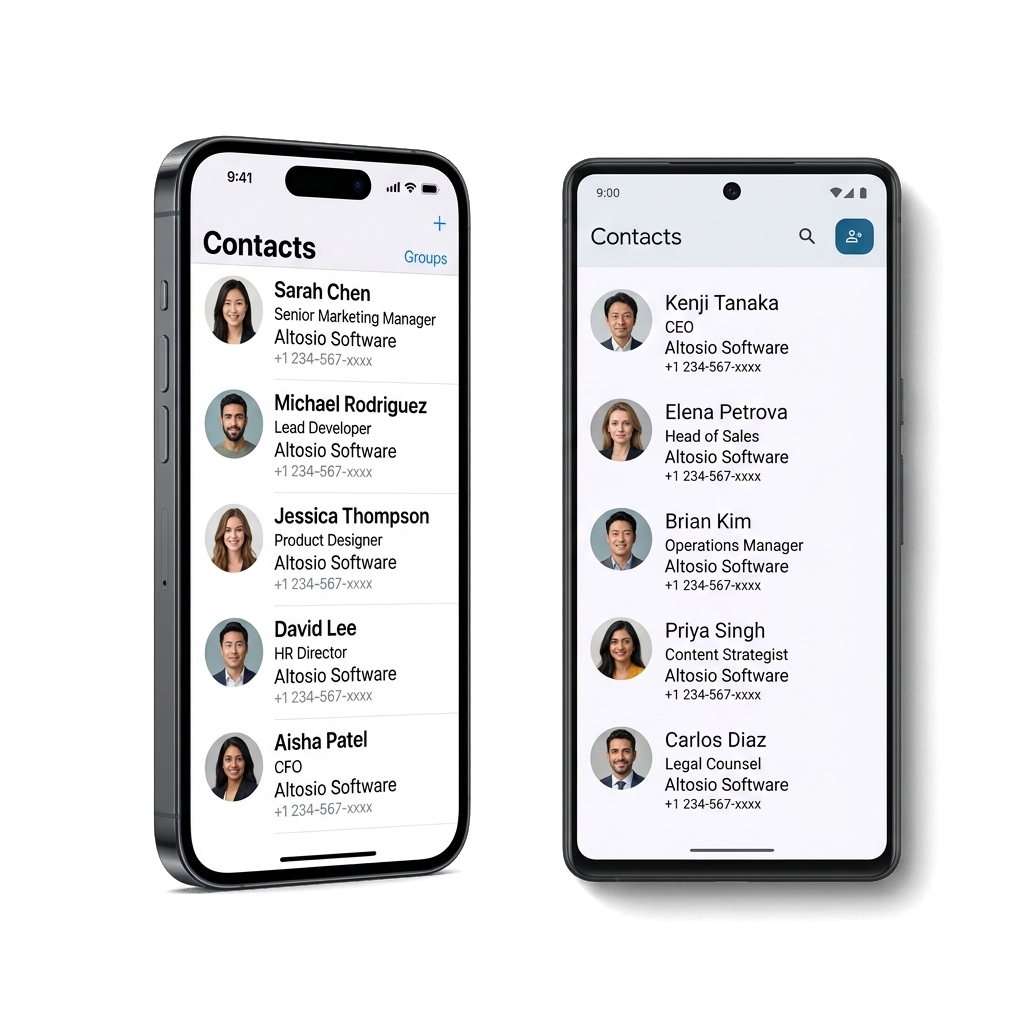
- On iOS and Android, colleagues appear in the phone's contacts with their picture, job title, phone numbers and email address, and incoming calls show their name.
What to consider?
Microsoft 365 is the source of truth
Contacts in the AltosioSync folder are managed by Altosio. Changes made to them on a phone are overwritten at the next sync: update the information in Microsoft 365 instead.
Security
Enterprise-Grade Security
The Altosio software runs in the Cloud and is hosted in Microsoft Azure data centers located in the US and the EU (Netherlands).
Stored data
To detect changes between two runs, Altosio keeps the directory fields it synchronizes (names, email addresses, phone numbers, company, department and job title).
Requirements
Microsoft 365 Requirements
- An admin consent to use the Altosio Entra ID Application from your tenant (requires Global Admin)
- Your tenant's domain (e.g., "company.com" or "tenant.onmicrosoft.com")
- An Exchange Online mailbox for each user who receives the contacts
Application permissions used
- Contacts.ReadWrite: write the contacts into the mailboxes
- User.Read.All: read the users of the tenant
- OrgContact.Read.All: read the mail contacts (when Sync contacts is on)
- GroupMember.Read.All: read the members of the security group (when one is set)
Licensing
Configuration
1. Sign up and create your first project
2. Create your M365 Sync connector
a. Connector details
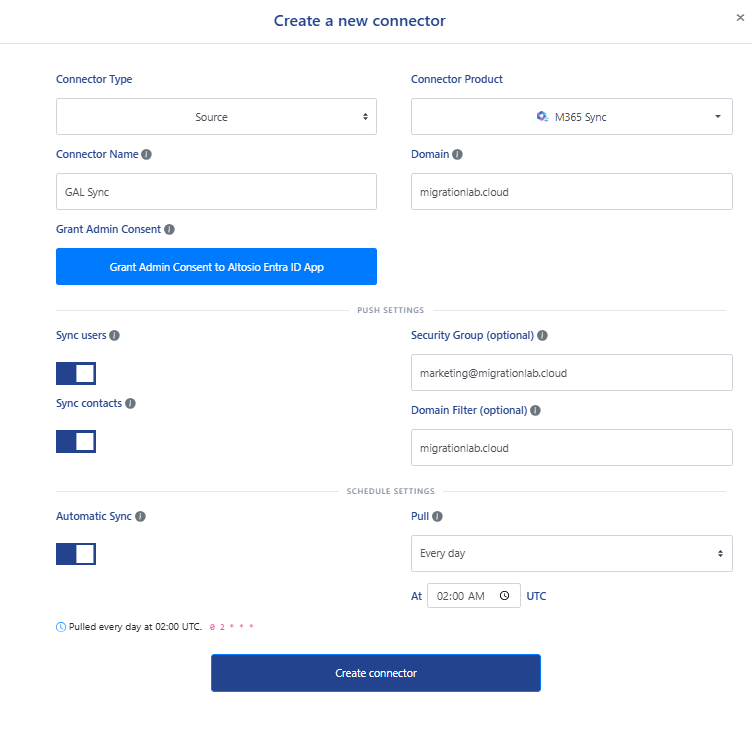
- Click New connector, choose Source, then M365 Sync. Enter a name and your tenant's domain, then click Grant Admin Consent to Altosio Entra ID App and sign in with a Global Admin account.
b. Push settings
- Sync users and Sync contacts choose what is pushed. Optionally, set a Security Group to only sync its members, and a Domain Filter to only sync the users of one domain.
c. Schedule settings
- Turn on Automatic Sync and choose how often the directory is pulled, for example every day at 02:00 UTC. Then click Create connector.
Creating the connector automatically starts a first pull of your directory.
d. Test the connector
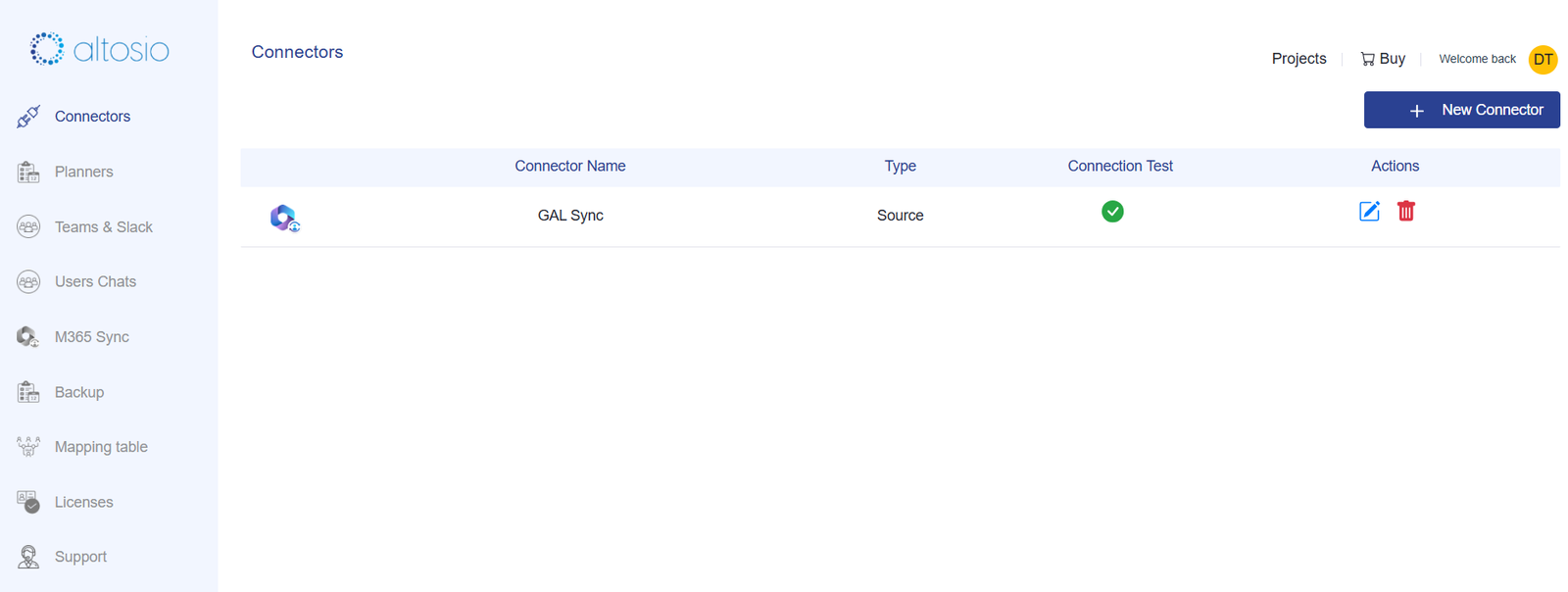
- The connection is tested when the connector is created, and you can test it again at any time from the Connectors page. A green check means that Altosio can read your directory and has the permissions it needs.
e. Review the changes found
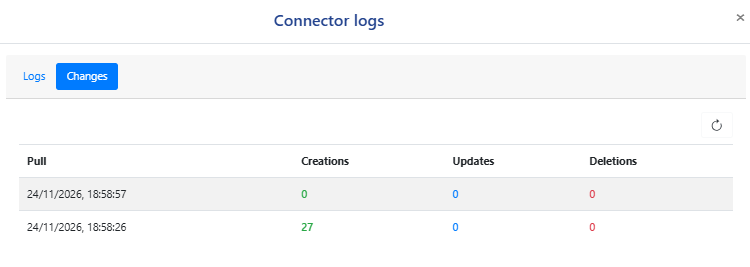
- In M365 Sync, click Logs on the connector, then Changes. Each pull lists the contacts created, updated and deleted in your directory. In this example, the first pull found 27 contacts and the next one found no changes.
Synchronization
1. Choose the users in scope
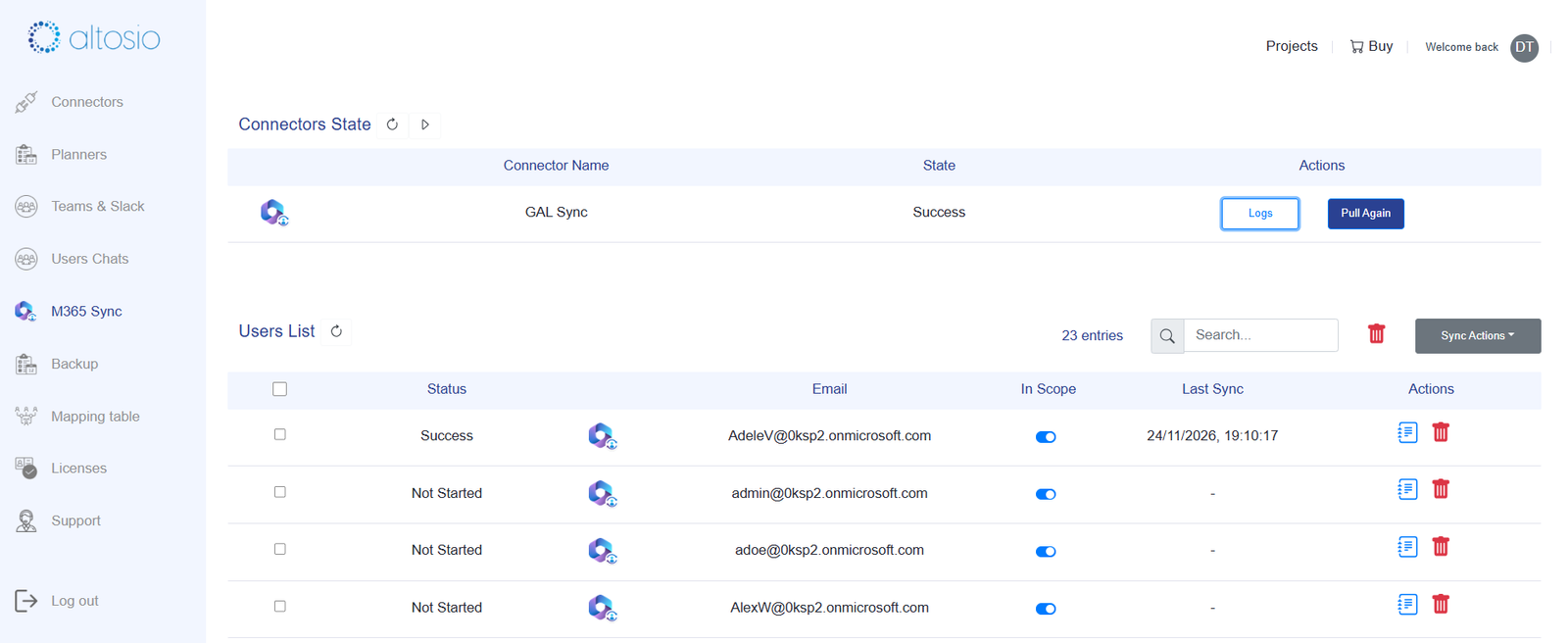
2. Start the synchronization
3. Check the result
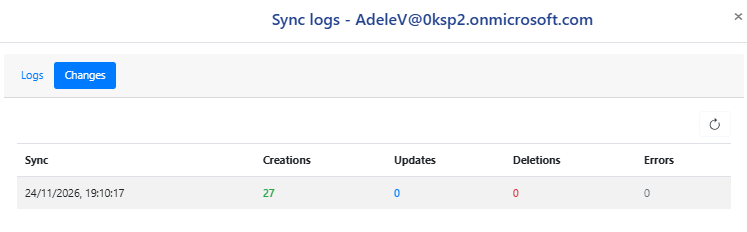
Contacts usually appear on the phones a few minutes after the sync, once the phone has synchronized the mailbox.
Uninstall
Support
Support is done by email at support@altosio.com or over Teams calls.
Need Help?
- Altosio support team will assist you throughout your project and will be pleased to help you set up a successful synchronization.