


Table of Contents
Introduction
Altosio offers a great tool to migrate project management data from and to several vendors. It allows you to seamlessly switch from one software to the other, with a guarantee of no data loss.
The migration software runs in the cloud, so you do not have to worry about installing anything. Everything is accessible from your web browser at app.altosio.com
Key Benefits
The migration tool is reliable, secure and lightning fast.
What is migrated?
- Workspaces
- Boards
- Personal boards
- Permissions and memberships
- Lists
- Attachments with their metadata (created by, created at, modified by, modified at)
- Cards
- Task details including title, collaborators, assignees description, start date, due date, comments
- Completion, labels, covers, and checklists
What to consider?
Important Limitations
There are some small limitations that you might need to be aware of. These limitations are thoroughly documented in our limitations article.
Security
Enterprise-Grade Security
The Altosio software runs in the Cloud and is hosted in Microsoft Azure data centers located in the US and the EU (Netherlands).
No Data Storage
The Altosio tool does not store anything internally. It reads data in chunks and pushes them in real time to the target. No data is cached or stored in the hard drive of the servers running the migration.
Requirements
Trello Requirements
From Trello, you need to connect to your Trello account from the Altosio platform, and consent to the Altosio Trello application. This allows Altosio to read data from your Trello workspace.
Planner Requirements
- An admin consent to use the Altosio Entra ID Application from your tenant (requires Global Admin)
- Your tenant's domain (e.g., "company.com" or "tenant.onmicrosoft.com")
- A migration account with a valid license for Microsoft Teams (e.g., E3, E5 license)
Licensing
License Details
- • License is board-based (not per user, task, or attachment)
- • Supports delta passes for multiple migration runs
- • Same license used across migration restarts
Configuration
1. Sign up and create your first project
2. Create your connectors
a. Create your Trello connector
- Click New connector, choose Source, then Trello. Click on Connect to Trello and follow the steps on the pop-up window, then click on Create connector.
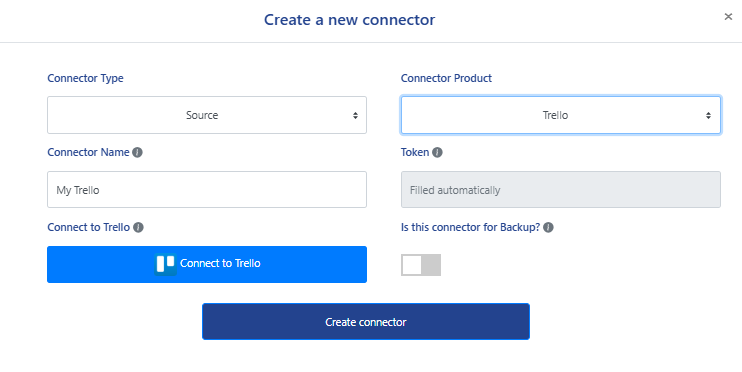
The creation of a Trello source connector automatically triggers a discovery job of your Trello environment, pulling the list of boards and user mappings.
b. Create your Planner connector
- Click New connector, choose Target, then Planner.
Provide your tenant name and domain, then click Grant Admin Consent to install the Entra ID Application. This requires Global Admin Credentails.
Provide a Migration account. The migration account is a regular Microsoft365 user, without any admin privileges. It has to have these 2 requirements:
1. Regular licensed user. Any license that allows this user to have a Mailbox and have access to Microsoft Teams.
2. Bypass SSO and MFA. This user has to authenticate natively to your Microsoft 365 tenant.
Pre-migration assessment
Before running the migration, Altosio provides you with a way to assess your migration. The Audit task allows you to identify on each board if you will hit the limitations that exist between the two environments.
For more information about pre-migration assessment, please reach out to support@altosio.com
Migration
1. User mappings
With an empty mapping table, the migration would still run, but the list of assignees will not be migrated correctly.
2. Understand the target fields
Target Plan Name
- Display name of the Planner in the target, visible at tasks.office.com
Target Email Nickname
- Email address of the Group/Team you're migrating to. This is the unique identifier of the M365 Group/Team that will hold the Planner.
Target Group Name
- Display name of the Group/Team
Target Channel Name
- Only for Teams migration - the channel where the plan tab will be created
3. Start Migration
Post-Migration
Delete the Altosio Entra ID Application
- 1. Go to portal.azure.com
- 2. Under Azure Services, click on Azure Active Directory
- 3. On the left-hand side menu, click on Enterprise applications
- 4. Find the Altosio application and click to open it
- 5. Click Properties → Delete and confirm
Revoke the Trello token
- Go to trello.com/my/account and under Applications, find the token and revoke it.
Support
Support is done by email at support@altosio.com or over Teams calls.
Need Help?
- Altosio support team will assist you throughout your migration project and will be pleased to help you run a successful migration.